eSIM Activation Failed Fix: Why It Happens and How to Fix Each Cause
eSIM Activation Failed Fix: Why It Happens and How to Fix Each Cause
By Chester Takau · July 2026
TL;DR
- Power off completely for 30 seconds (not a restart) — this alone clears roughly 40% of activation failures
- "Unable to Activate eSIM" almost always means the QR code was already scanned once — ask your provider to re-issue it, don't rescan
- Stuck on "Activating…" before you've landed abroad is often normal — travel eSIMs finish activating once you're in coverage
- If the QR won't scan at all, enter the SM-DP+ address and activation code manually instead
- Running a physical SIM plus an eSIM (or two eSIMs)? Check which line is set for data — a second install can silently knock the first one inactive
"eSIM activation failed" is not one error — it's a label your phone puts on at least six different problems, and the fix depends entirely on which one you've got. A used QR code, a carrier-locked phone, a pre-arrival travel eSIM, a dead network, and a dual-line conflict on your own phone all produce the exact same message. Work through the causes below in order — the first two solve most cases in under a minute.
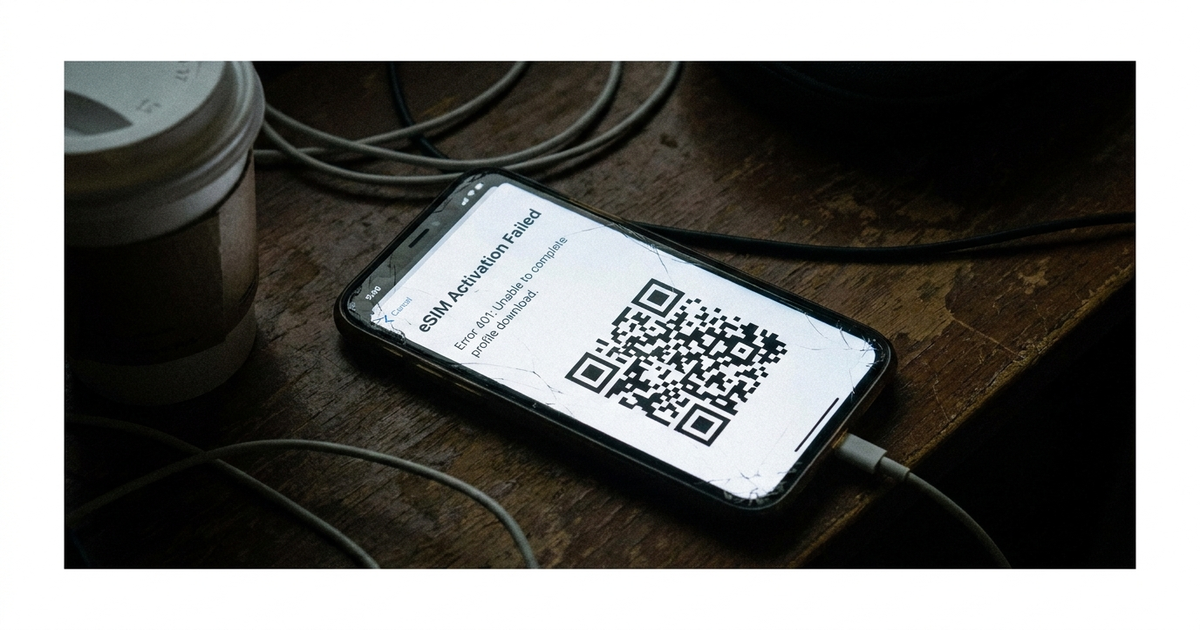
Step 1: Full power off, not a restart
Before touching any settings, power the phone off completely, wait 30 seconds, then turn it back on. A restart isn't the same thing — it doesn't fully drop the modem's connection to the network the way a cold power cycle does. This single step is cited across 2026 troubleshooting guides as resolving around 40% of eSIM activation failures on the first try, and it costs nothing to attempt before anything else. (GoConnect, 2026)
"Unable to Activate eSIM" — is the QR code already used?
This is the single most common cause. Almost every eSIM QR code is single-use: once your phone (or any phone) successfully scans it, that code is burned, even if the install then fails or you delete the eSIM afterward. Trying again with the same QR code just produces the same error on a loop. Don't keep rescanning it — that doesn't reset anything and can make some providers flag the profile. Contact your provider and ask for a re-issued QR code or a fresh SM-DP+ activation code instead. (BitJoy, on eSIM QR code errors)
Stuck on "Activating…" — is that actually a failure?
If you installed a travel eSIM before a trip and it shows "activating" or even "activation failed" while you're still at home, that can be expected behavior rather than a real problem. Airalo and other travel-eSIM providers confirm that some profiles only complete activation once your phone connects to a partner network in the destination country — the status resolves itself on arrival, inside coverage. Requesting a refund at this stage is premature; give it a few minutes once you land before assuming something's wrong. (Airalo help center)
If you're already in the destination country and it's still stuck, two newer 2026 causes are worth checking first: iCloud Private Relay or an active VPN can interfere with the activation handshake, and an incorrect device date or time will also block it silently. Turn Private Relay and any VPN off, confirm your date/time is set to automatic, then retry. (Saily, 2026)
Is your phone carrier-locked?
A carrier-locked phone will accept an eSIM install and then fail to actually connect, often producing the same generic error as a bad QR code. Check Settings → General → About → Carrier Lock on iPhone, or contact your carrier directly, before assuming the eSIM provider is at fault. This is the most common thing travel-eSIM sellers get blamed for that is genuinely outside their control — the phone, not the profile, is refusing the connection. (Soovia, on why eSIM isn't working)
QR code won't scan at all — use manual activation
If the camera won't recognize the QR code (damaged screenshot, glare, low resolution), you don't need the QR at all. Every eSIM profile has an underlying SM-DP+ server address and an activation code — your provider's email or account page has both. Go to Settings → Mobile Service → Add eSIM → Enter Details Manually and type them in directly. This route works even when scanning fails outright, and newer GSMA eSIM Discovery-enabled phones can now fetch a purchased profile automatically using just the device's eUICC identifier, skipping the QR step entirely. (BitJoy, on SM-DP+ addresses) For the full first-time walkthrough on any phone, see the how to set up eSIM guide, and for iPhone specifically, the iPhone eSIM setup guide.
The dual SIM angle nobody else covers: is your second line the problem?
If you're running two eSIMs, or a physical SIM plus an eSIM, there's a failure mode that pure single-SIM troubleshooting guides skip entirely: installing a new eSIM can silently reassign which line handles data, voice, or SMS, and the previous line can end up looking "failed" when it's actually just been deprioritized. After any new eSIM install, check Settings → Mobile Service and confirm which line is set as your data line and which handles calls/texts — don't assume it kept your old assignment. If the new eSIM shows as active but you have no data, it's worth checking whether your existing line is still set as primary for data and is quietly blocking the new one, rather than the new profile having failed to activate at all. This is also the exact scenario I cover from the call-quality side in the dual SIM call dropping fix — most dual SIM phones share a single radio, so line conflicts show up as activation, call, and data problems that all trace back to the same root cause.
Did iOS 26 change how these errors look?
Yes, and it's an improvement worth knowing about. iOS 26 replaced Apple's old generic "activation failed" message with state-specific errors that actually tell you why — no network, an already-installed profile, or a carrier-side rejection are now distinguished instead of lumped together. If you're troubleshooting on iOS 26 or later, read the exact wording of the error before working down this list; it will often point you straight at the right section. iOS 26.3 also added cross-platform eSIM transfer between Android and iPhone for supported carriers, which is itself a new failure point — if you're transferring rather than installing fresh and it fails, the carrier likely doesn't support Quick Transfer yet, and a full remove-and-reinstall on the new device is the workaround. (ohayu, on iOS 26 eSIM changes, 360-Reader, on transfer fixes)
Activated but showing "No Service"?
A successful install that still shows no signal is a separate problem from activation itself. Confirm data roaming is switched on for that line if you're traveling, and check whether your provider requires manual APN settings — most travel eSIMs and some carrier eSIMs need the APN entered by hand under that line's network settings, and a missing or wrong APN produces "No Service" even on a correctly activated profile. Toggling airplane mode on and off forces a fresh network scan and resolves a fair share of these on its own.
This walkthrough covers the core activation sequence on iPhone in under three minutes and is a fast visual reference if you'd rather watch than read:
What not to do
- Don't rescan a QR code repeatedly after the first failed attempt — it's already burned and repeated scans won't fix that
- Don't factory reset the phone as a first step — it doesn't touch the actual causes above and costs you far more time
- Don't request a refund for a travel eSIM the moment you see "activating" before you've landed — give it time in coverage first
Quick reference: match your error to the fix
- "Unable to Activate eSIM" → QR code already used, get it re-issued
- Stuck on "Activating…" before travel → normal, resolves on arrival in coverage
- Stuck on "Activating…" while already abroad → check VPN/Private Relay and device date-time
- Fails immediately every time → check carrier lock status
- QR won't scan → enter the SM-DP+ address manually
- Activated but no data → check APN settings and which line is set for data
- Running two eSIMs or eSIM + physical SIM → check line assignment didn't get reshuffled
For checking whether your destination even has solid eSIM coverage before you rely on one, see eSIM supported countries. And if you're juggling a work and personal line and want a setup that avoids these conflicts altogether, the dual SIM for remote workers guide covers the line-assignment approach that's held up for me.
Transparency note: This article was researched and written by Chester Takau with AI assistance for research gathering and drafting. All recommendations reflect the author's own editorial judgment.
Related on DualSIMCardPhone: eSIM QR Code Expired What to Do: The Full Fix


