How to Use SM DP Plus Address eSIM: Manual Activation Steps for iPhone and Android
How to Use SM DP Plus Address eSIM: Manual Activation Steps for iPhone and Android
The short version
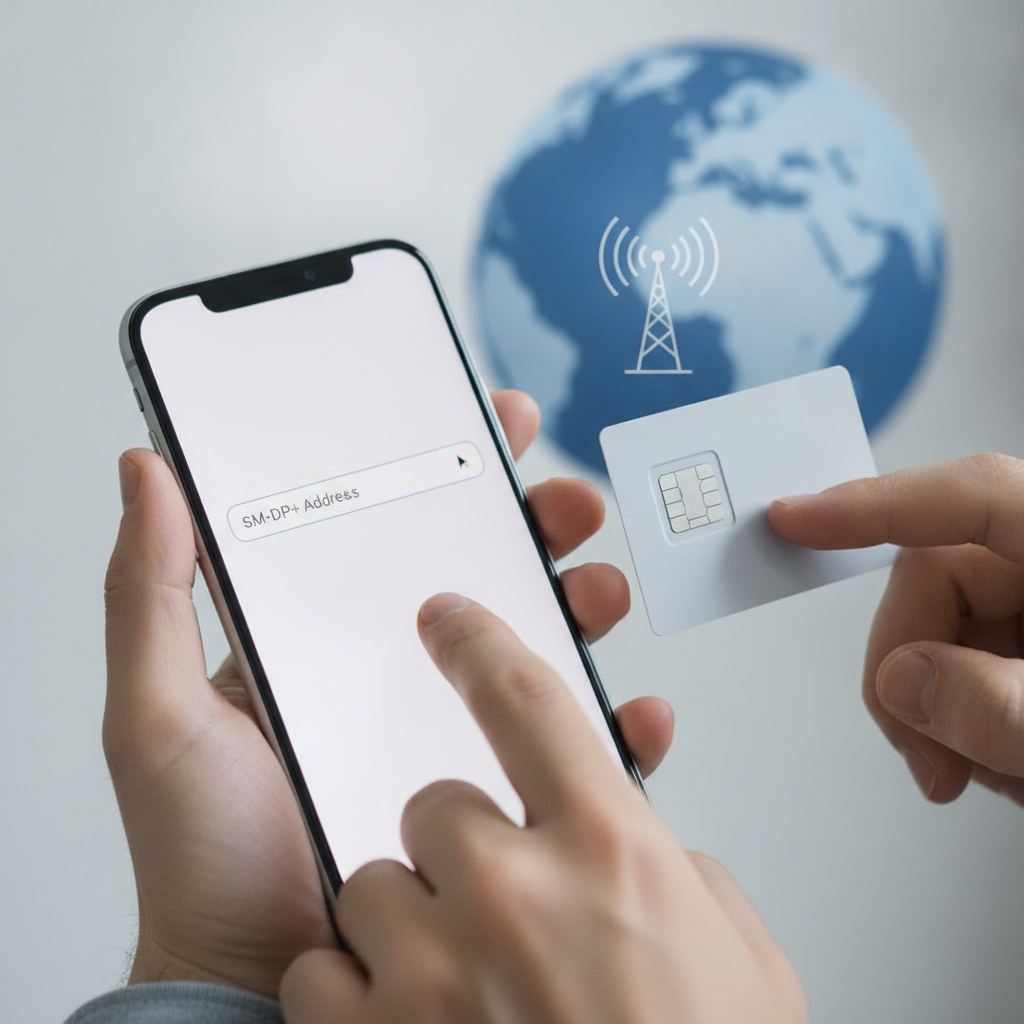
You use an SM-DP+ address by pasting it into your phone's manual eSIM setup screen, together with the activation code your provider emailed you:
- iPhone (iOS 26): Settings → Cellular → Add eSIM → use the "other options" link → Enter Details Manually → paste the address into the SM-DP+ Server field and the code into Activation Code.
- Android: Settings → Network & internet → SIMs → Add eSIM → choose Enter code manually when the camera opens → paste the same two values.
- Leave off https://, leave the confirmation code blank unless you were given one, and stay on stable Wi-Fi until the profile finishes downloading.
Manual SM-DP+ entry is the fallback every eSIM provider keeps for the moments QR activation fails — a cracked camera, the QR code sitting in an email on the same phone you're setting up, or a second device you want the plan on. With eSIM adoption among travelers hitting 28.1% in the 2026 summer season (Travel Daily News), more people are meeting this screen for the first time at an airport, and most guides skip the details that actually trip people up. This one doesn't.
Chester Takau · DualSIMCardPhone
Chester Takau is an independent reviewer of dual-SIM and eSIM technology, testing setups from the Pacific where connectivity choices really matter.

Paste it here: SM-DP+ / LPA code splitter
Paste whatever your provider sent — a QR payload starting with LPA:1$, a server$code pair, or just the address — and this splits it into the exact fields your phone asks for. Nothing leaves your browser.
What an SM-DP+ address actually is
SM-DP+ stands for Subscription Manager Data Preparation+ — the server, defined in the GSMA's SGP.22 remote-provisioning spec, that stores your eSIM profile before it reaches your phone. When you activate manually, your phone's built-in LPA (Local Profile Assistant) contacts that server and pulls the profile down. The "address" is just the server's domain name; it usually looks like rsp.providername.com.
Two things follow from that. The address is not secret and not unique to you — many carriers use one address for every customer. And the address alone does nothing: the one-time activation code is the key that unlocks your profile on that shared server.
What's the difference between the SM-DP+ address, the activation code, and the confirmation code?
Providers send up to three separate pieces, and mixing them up is the most common setup failure:
| Piece | What it looks like | What it does | Where it goes |
|---|---|---|---|
| SM-DP+ address | A bare domain, no https:// | Tells the phone which server holds the profile | "SM-DP+ Server" / "SM-DP+ Address" field |
| Activation code | Letters and digits, often hyphenated | One-time key that releases your specific profile | "Activation Code" field |
| Confirmation code | Short PIN, frequently not issued at all | An extra verification step some carriers add | "Confirmation Code" field — leave blank if none was given |
There's a fourth format catching people out in 2026: a single combined string starting with LPA:1$. It's the same data glued together with dollar signs — LPA:1$server-address$activation-code — and it's exactly what's encoded inside the QR code you didn't scan. As SimFinder's manual-code guide notes, more providers now email this string on its own, and it's meant to be pasted whole into the activation-code field on iPhones, which split it automatically. On phones with separate fields that don't auto-split, break it at the $ marks yourself — or use the splitter tool above.
How to use the SM-DP+ address on iPhone (iOS 26)
- Connect to Wi-Fi. The profile download needs internet before the eSIM has any of its own.
- Go to Settings → Cellular (or Mobile Data) → Add eSIM.
- Don't scan. Look for the smaller link — "other options" or Enter Details Manually — at the bottom of the QR screen.
- iOS 26 shows three clearly separated fields: SM-DP+ Server, Activation Code, and an optional Confirmation Code, as current provider walkthroughs like Yoho Mobile's iOS 26 guide document. Paste each piece into its own field.
- Tap Next and wait — the download usually takes under a minute. Then label the new line (e.g. "Travel") and pick your defaults.
The manual screen is only the first half of the job; naming lines, choosing which one handles data, and switching between plans afterwards is covered in our iPhone eSIM setup for adding and switching plans.
How to use the SM-DP+ address on Android
- Pixel / stock Android: Settings → Network & internet → SIMs → Add eSIM (on some builds, "Download a new SIM"). When the camera viewfinder opens, tap Enter code manually or the "Need help?" link.
- Samsung Galaxy: Settings → Connections → SIM manager → Add eSIM → look for the "Enter activation code" option beneath the scanner.
- Paste the SM-DP+ address and activation code into the two fields, confirm, and keep the phone on Wi-Fi until the profile lands.
Menu names drift between manufacturers and Android versions, but the fields underneath are identical everywhere — our step-by-step eSIM setup on any phone maps the same flow across the major brands if your screens don't match the list above.
Dual-SIM note: typing an SM-DP+ address does nothing to the physical SIM already in your tray. The eSIM simply arrives as a second line alongside it, and on dual-eSIM phones you choose which profiles stay enabled. Once both lines are live — naming them, setting a default for calls and data, using a local eSIM next to your home SIM abroad — that's the day-to-day side of how to use eSIM with dual-SIM setup and travel.
Do I type "https://" in front of the SM-DP+ address?
No. Enter the bare domain — rsp.providername.com — and let the phone handle the secure connection itself. Watch for one trap: email apps auto-link anything that looks like a server name, so a copied address sometimes arrives with https:// glued on, or with a trailing slash or space. Any of those can trigger an "invalid address" rejection. Paste into a notes app first to see the raw text, trim it clean, then paste again. (The splitter tool above strips the prefix and trailing slashes automatically.)
Where exactly do I find my SM-DP+ address if I lost the confirmation email?
- Your provider's app or account page. Open your order and look for a "Manual installation," "Activation code," or "Install without QR" tab — that's where the address and code pair lives.
- The QR code itself. The QR you were sent contains the identical
LPA:1$string. Screenshot it and decode it with Google Lens or a second phone's camera app; the decoded text is everything you need for manual entry. - Support — with the right words. Ask specifically for "the SM-DP+ address and activation code for manual eSIM installation." Telnyx's explainer points out that many carriers bury this behind inadequate documentation and untrained frontline support, so naming the exact fields gets you past the first scripted reply.
- Universal addresses. Some carriers publish one SM-DP+ address for all customers — your activation code is the part that's actually yours. If a carrier's address is widely documented, you only need the code from your account.
Watch it: the SM-DP+ address walkthrough
If you'd rather see the screens before touching your own settings, this walkthrough covers what the SM-DP+ address is and where it goes during manual setup:
Why does my phone say "invalid SM-DP+ address" even when I pasted it correctly?
Because "invalid" is the phone's catch-all error, and a typo is only one of five causes current troubleshooting roundups flag. GomoWorld's 2026 guide and esim.compare's troubleshooting coverage converge on this checklist — consolidated here so you don't have to open six provider blogs:
| Symptom | Likely cause | Fix |
|---|---|---|
| "Invalid SM-DP+ address" instantly after pasting | Trailing space, smart quotes, or a pasted https:// prefix | Paste into a notes app, strip the extras, re-paste the bare domain |
| "Activation code already used" | Single-use code was burned by an earlier failed attempt | Contact the provider to reset or reissue the code — retrying won't help |
| Download stalls, times out, or the server "rejects" the request | Active VPN or DNS-level ad-blocker interfering with the SM-DP+ connection | Disable VPN/ad-blocker, use plain Wi-Fi, retry |
| "Unable to add eSIM" on a financed or carrier-locked phone | Carrier lock restricts the device to that operator's profiles | Only the locking carrier's eSIMs will install; settle the device or request an unlock first |
| Authentication errors with everything typed perfectly | Wrong device date/time breaks the eSIM security handshake | Set date & time to automatic, then retry |
| Fails repeatedly after every fix above | Corrupted network cache | Reset Network Settings (iPhone) or "Reset Wi-Fi, mobile & Bluetooth" (Android), rejoin Wi-Fi, try again |
One warning worth repeating: activation codes are typically single-use. If your first attempt fails for a fixable reason like a VPN, sort that out before tapping Next again — travelers have burned their only code at the airport by hammering retry, and reissue means a support queue.
Can I reuse the same SM-DP+ address and activation code on a second phone?
The address, yes — it's just a server name, and reusing it costs nothing. The activation code, no: it redeems once. Moving to a second phone means one of three paths — a fresh code from your provider, the carrier's own eSIM-transfer flow, or the newer Device Change capability the GSMA standardized in SGP.22 v3.0 on September 1, 2026 (alongside Multiple Enabled Profiles and an LPA API). Device Change support is still rolling out carrier by carrier, so for now assume you'll be requesting a new code.
Will you even need this screen a year from now?
Less often, but it isn't disappearing. The GSMA's eSIM Discovery service — live in over 160 device models from 40-plus manufacturers — lets a phone find and pull your profile automatically, with no address or code typed at all. Industry commentary is split on what that means: some call it the end of manual SM-DP+ entry, others point out that Discovery needs both a supported device and carrier-side rollout, which most operators haven't done (droam.news). With eSIM penetration at roughly 5% of smartphones at the end of 2025 and projected near 10% by the end of 2026 on the way to 4.9 billion connections by 2030 (GSMA Intelligence), manual entry remains the universal fallback for years. Learning where the fields are is still worth the five minutes.
FAQ
Is the SM-DP+ address the same thing as the LPA string starting with LPA:1$?
The string contains the address. LPA:1$ is a prefix telling the phone what follows, then the SM-DP+ address, then your activation code, separated by dollar signs. It's the address and code packaged as one paste-ready line — the same payload the QR code encodes.
Do I need Wi-Fi, or can I use mobile data on my primary SIM to download the eSIM profile?
Either works — the download is small. Wi-Fi is the safer choice because the connection needs to stay stable until the profile completes, but mobile data on an active primary line does the job when Wi-Fi isn't around.
Why won't manual entry work on my carrier-locked or financed phone?
A carrier lock doesn't just block SIM cards — it blocks eSIM profiles from any other operator. On a locked or still-financed device, only the locking carrier's profiles will install, no matter how perfect your SM-DP+ address is. Unlock the phone first, or buy the eSIM from the carrier it's locked to.
Does a VPN or ad-blocker interfere with the eSIM download from the SM-DP+ server?
Yes, it can. VPNs and DNS-level ad-blockers sometimes trigger rejections from the SM-DP+ server mid-handshake. Turn both off for the few minutes the download takes, then switch them back on.
My activation code says "already used" — can my provider reissue it for the same SM-DP+ address?
Yes, and this is routine for support teams. The SM-DP+ address never changes; the provider simply resets or regenerates the activation code tied to your order, and you retry manual entry with the fresh code. Some providers let you regenerate it yourself from your account page.
Sources
- GSMA — SGP.22 v3.0 eSIM remote provisioning specification
- GSMA Services — eSIM Discovery
- GSMA Intelligence — eSIM market progress and adoption to 2030
- SimFinder — manual eSIM code and LPA string guide
- GomoWorld — SM-DP+ address troubleshooting
- esim.compare — eSIM troubleshooting and single-use codes
- Yoho Mobile — manual eSIM activation on iOS 26
- Telnyx — what an SM-DP+ address is
- Travel Daily News — eSIM adoption in 2026 travel connectivity
Updated September 2026.
Transparency note: This article was researched and written by Chester Takau with AI assistance for research gathering and drafting. All recommendations reflect the author's own editorial judgment.


