How to Stay Reachable on Two Numbers While Abroad
How to Stay Reachable on Two Numbers While Abroad
By Chester Takau · August 2026
Direct answer
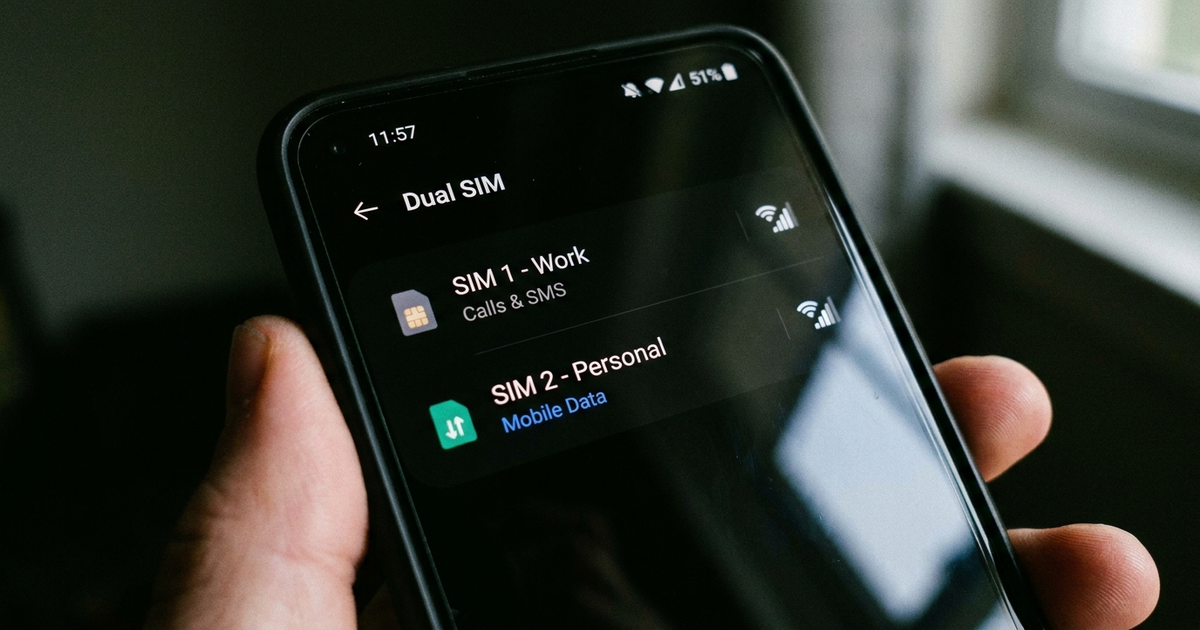
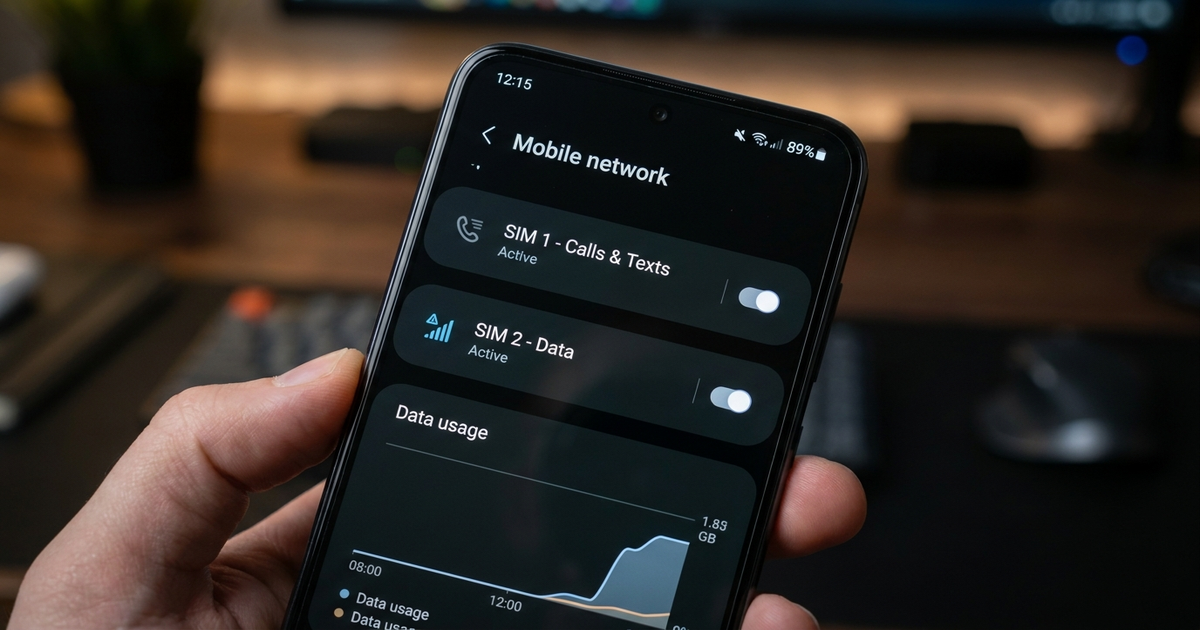
Leave your home SIM installed and set to calls/texts only, with data roaming switched off. Put a travel eSIM in the second slot and set it as your default for data. Your home number keeps ringing and receiving SMS — including bank OTPs — because incoming SMS on your home line is free everywhere carriers operate, and it doesn't touch the eSIM at all. The two lines never compete: one handles reachability, the other handles data.
Chester Takau
Chester Takau is an independent reviewer of dual-SIM and eSIM technology, testing setups from the Pacific where connectivity choices really matter.
This is a dual-SIM problem before it's an eSIM problem. Most travel eSIMs are data-only and were never assigned a callable number, so the mistake that breaks reachability is turning off or removing the home SIM to "save on roaming" — that's the line your bank's OTP, your kids' school, and anyone trying to reach you actually depends on. Keep it in, keep it on, and let the eSIM do the one job it's good at.
Two-Number Setup Checklist
Answer two questions and get the exact settings to configure before you fly.
General guidance — carrier menus vary by device and region. Confirm your home carrier's data roaming toggle before you travel.
Will adding a travel eSIM change or replace my home number?
No. Installing an eSIM adds a second profile to your phone — it doesn't touch the SIM or profile already assigned to your home number. The confusion comes from most travel eSIMs being sold as data-only, which means they were never designed to carry calls or texts in the first place, not that they interfere with the line that does. Your home number keeps working exactly as before, on whichever SIM it's tied to. For the mechanics of how two SIM identities coexist on one device, the dual SIM basics guide covers how two SIM cards run in one phone without one overwriting the other.
Is receiving SMS abroad free, or will incoming bank codes get billed?
Receiving SMS while roaming is free on your home line — carriers don't charge for incoming texts, and that includes bank OTPs and 2FA codes, because the message rides carrier signaling independently of any data plan. This is exactly why turning off data roaming to avoid charges is safe: it stops your home SIM from burning data in the background, but it has no effect on whether calls or texts reach you. The eSIM handling your actual browsing is a separate profile explained in the what is eSIM explainer if you want the underlying embedded-chip mechanics.
Why does my verification code fail on hotel Wi-Fi but arrive fine on cellular?
This is the failure point most people never diagnose correctly. When Wi-Fi Calling isn't enabled, a weak or captive-portal hotel network can silently swallow the SMS delivery handshake — the code just never shows up, with no error. The fix is a single toggle: enable Wi-Fi Calling on your home line before you travel, so the same delivery path that works over cellular also works when the phone is parked on unreliable hotel Wi-Fi.
My home SIM is draining the battery abroad — should I just turn it off?
Not entirely, or you lose reachability. A home SIM with no local network partner scans constantly for signal, which is what burns the battery. The workable middle ground is toggling airplane mode on just that line for a few hours at a time rather than leaving it always-on-and-searching, then switching it back before you expect a call or a bank code. If you're topping up the eSIM side of this setup partway through a trip, the eSIM recharge guide covers adding data to the same profile without losing it, so the data line doesn't need reinstalling every time you manage battery on the other one.
Do WhatsApp and iMessage still work if the home line is calls/texts only?
Yes. WhatsApp and iMessage are tied to your phone number and Apple ID, not to which SIM is currently carrying data — they'll send and receive over whichever line has an active data connection, which in this setup is the travel eSIM. Your home number stays the identity both apps use even though it isn't the one moving the bytes.
Apple's own walkthrough on iOS 26 shows the two-line setup and the automatic travel-eSIM handoff described above:
What happens when I land back home?
On iOS 26, the phone handles this for you in supported regions — the travel eSIM turns itself off and your home line resumes as the default automatically. On Android or older iOS, do it manually: switch cellular data back to the home SIM and either delete or just leave the travel eSIM installed but inactive, since most rechargeable profiles don't need to be removed to stop being billed. Checking this the same day you land avoids the classic mistake of accidentally roaming on the travel eSIM's home network days after the trip ended.
Quick reference
- Home SIM → calls + texts default, data roaming off, Wi-Fi Calling on
- Travel eSIM → data default, the only line actually spending money on browsing
- OTP not arriving → check Wi-Fi Calling first, not your data plan
- Battery draining fast → airplane-toggle the home SIM in blocks, don't leave it always-searching
- Back home → confirm the travel eSIM is off and home line is back to default data
Sources: Apple Support, eSIM while traveling (2026) · Surfroam, receiving SMS abroad (2026) · Triposim, OTP codes with a travel eSIM (2026) · Simovo, using a physical SIM and eSIM together
Updated August 2026.
Transparency note: This article was researched and written by Chester Takau with AI assistance for research gathering and drafting. All recommendations reflect the author's own editorial judgment.


