How to Set Default SIM for Calls and Data on Any Phone
How to Set Default SIM for Calls and Data on Any Phone
By Chester Takau · August 2026
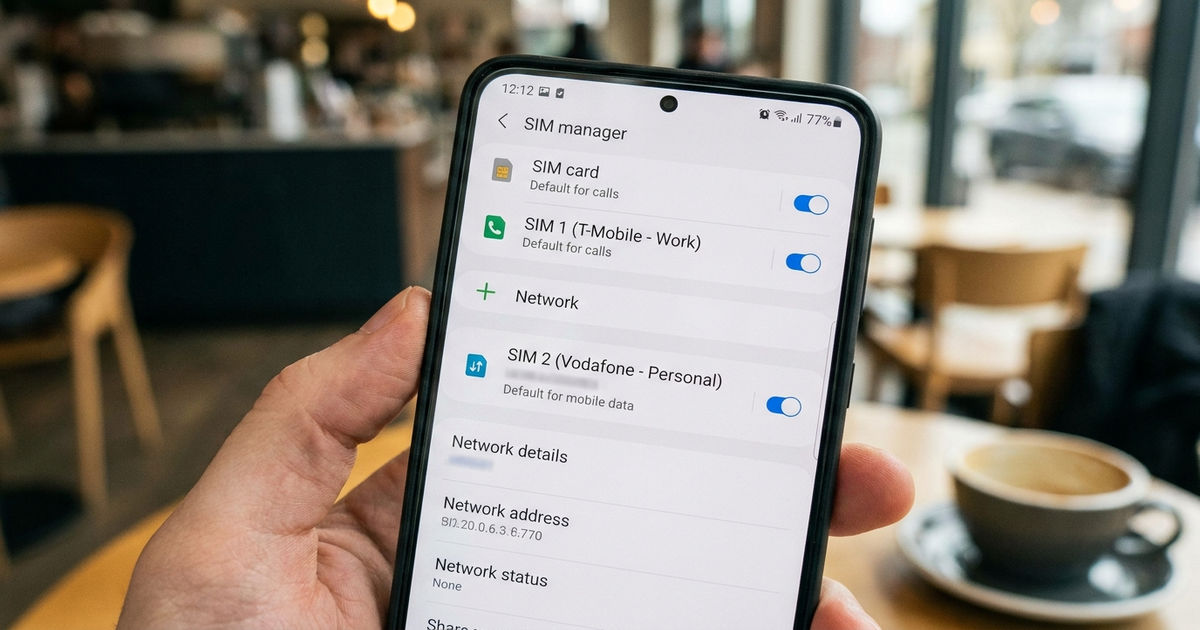
On Android, go to Settings → SIMs (called SIM manager on Samsung) and tap "Calls," "Text messages," and "Mobile data" separately, choosing a different SIM for each if you want. On iPhone, go to Settings → Cellular, set your Default Voice Line, then scroll down and set a separate Cellular Data line. Both platforms let you run calls on one SIM and data on the other at the same time — you set the two independently, not as one combined choice.
The short version
- Android: Settings → SIMs/SIM manager → tap Calls, Text messages, and Mobile data one at a time
- iPhone: Settings → Cellular → Default Voice Line, then set Cellular Data separately underneath
- Most dual-SIM phones run one active radio at a time (DSDS) — that's why data can pause on the other SIM during a call unless you turn on the data-during-calls toggle
- If your default keeps resetting itself, it's usually auto data switching reassigning it, not a bug
Chester Takau
Chester Takau is an independent reviewer of dual-SIM and eSIM technology, testing setups from the Pacific where connectivity choices really matter.
Default SIM Menu Finder
Pick your phone type to get the exact settings path for calls, texts, and data.
Menu wording shifts slightly between OS versions and carriers — the destination screen stays the same.
Why does my data stop working while I'm on a call on the other SIM?
That's not a bug — it's how most dual-SIM phones are built. Nearly every dual-SIM handset sold today uses DSDS (Dual SIM Dual Standby), meaning it has two SIM slots but only one active radio. Both SIMs can sit on standby at once, but only one can carry a live call or a live data session at a time. So when a call comes in on SIM 2, SIM 1's data pauses until the call ends — the phone physically can't do both through one radio simultaneously. Samsung and other Android makers offset this with a toggle, usually labeled "Allow data during calls" or similar, that uses VoLTE to keep a thin data connection alive during the call. It's the single most misunderstood part of dual-SIM phones, and almost nobody explains it before showing you the toggle to fix it.
Can I use one SIM for calls and texts and the other only for data?
Yes, and this is the actual goal for most people who search for this — a work SIM handling calls and texts, and a second SIM or eSIM handling data because it's cheaper or has better local coverage. On Android, the SIM manager treats calls, texts, and mobile data as three separate defaults, so you just point each one at a different SIM. On iPhone it works the same way through Default Voice Line and a separate Cellular Data selection. For the setup steps if your data SIM is an eSIM specifically rather than a second physical card, the step-by-step eSIM activation guide covers getting that profile installed first.
Why does my default SIM keep changing on its own?
Almost always, auto data switching is doing it on purpose. Since Android 12, phones can temporarily borrow the other SIM's data when your primary SIM loses coverage, then switch back once signal returns — Samsung has leaned harder into this in 2026, with newer Galaxy software surfacing the feature by default rather than burying it. It's genuinely useful while traveling, but it also means your "default" data SIM isn't always fixed if the toggle is on. If it's switching more than you want, go back into SIM manager (Android) or Cellular Data Switching (iPhone) and turn the auto-switch option off — that locks your choice in place instead of letting the phone override it based on signal.
Where did the "switch mobile data" menu option go on my Galaxy?
It hasn't been removed, it's been folded into SIM manager under "Mobile data" rather than living as its own separate settings entry, which trips up people upgrading from an older One UI version where it sat somewhere else. One UI 8.5, currently in beta on the Galaxy S25 series, goes a step further and replaces the old two-icon dual-SIM status bar display with a single unified signal icon — a cosmetic change, but if you were using the two icons to eyeball which SIM was carrying data at a glance, that visual cue is gone and you'll need to check SIM manager directly instead.
On iPhone, why don't my calls go out on the line I set as default?
This is the most common iPhone dual-SIM complaint, and it's a real limitation rather than user error. Default Voice Line sets which line iPhone uses by default, but iOS still routes a call to whichever line last messaged that contact, or to a line you've manually assigned to that specific contact, overriding your global default. Users have flagged this repeatedly on Apple's own developer forums. The fix isn't a hidden setting — it's going into the Contacts app, opening the contact, and setting their preferred line directly under their phone number, which then takes priority over your global Default Voice Line for that person specifically.
Does this work differently on a budget Xiaomi, Redmi, or Poco phone?
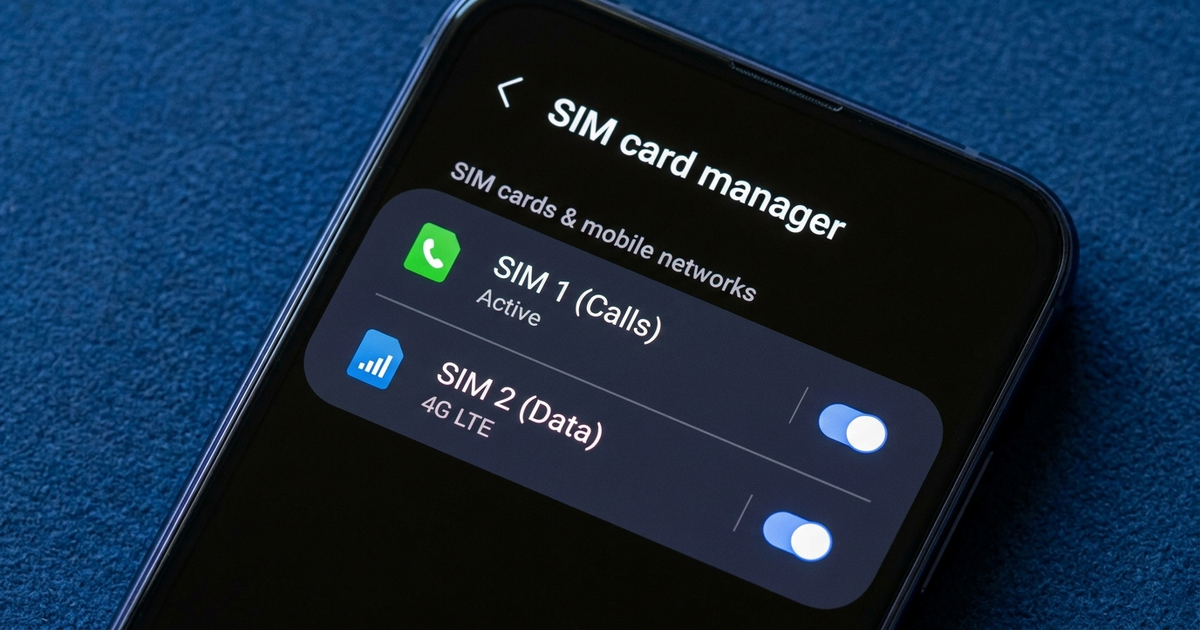
The menu location shifts, but the underlying logic doesn't. HyperOS and MIUI group all three defaults — calls, SMS, and mobile data — on one SIM cards & mobile networks screen instead of splitting them across Samsung's SIM manager or Pixel's per-SIM pages, which some people actually find quicker since there's no need to open each SIM individually. The DSDS limitation still applies underneath, so data still pauses on the other SIM mid-call unless the phone offers an equivalent toggle, and not every budget model includes one.
This walkthrough shows the same setup on a current Pixel, covering the physical SIM and eSIM slot separately for calls, texts, and mobile data:
What I've actually run into testing this setup
I keep a local SIM for calls and an eSIM data plan running side by side on trips through the Pacific, and the DSDS data-drop is the thing that catches people off guard every time — I've had a data download stall mid-call and assumed the eSIM had failed, when it was just the phone parking data while the voice SIM held the line. Once you know to check the "allow data during calls" toggle first, it stops being confusing. The other pattern I run into constantly is auto data switching quietly reassigning the data default when I move between islands with patchy coverage — useful for staying connected, mildly annoying if you're specifically trying to keep usage on a data plan you're paying for by the SIM. For more on how the two-SIM side of this actually behaves day to day, the explainer on how two SIM cards share one phone covers the hardware side of that split. And if the setup you're aiming for is calls on a physical SIM with an eSIM handling data specifically, the guide to how embedded eSIM chips work explains why that combination has become the default recommendation for exactly this use case.
Quick reference by phone type
| Phone | Menu path | Set independently? |
|---|---|---|
| Samsung Galaxy | Settings → Connections → SIM manager | Yes — Calls, Texts, Data each have their own selector |
| Pixel / stock Android | Settings → Network & internet → SIMs | Yes — set per SIM under "Use SIM for" |
| Xiaomi / Redmi / Poco | Settings → SIM cards & mobile networks | Yes — Calls, SMS, Data listed on one screen |
| iPhone | Settings → Cellular | Yes — Default Voice Line and Cellular Data are separate settings |
Sources: Apple Support, Using Dual SIM with two nano-SIM cards (108898) · AT&T Device Support, set default SIM for calls, texts, and cellular data on Galaxy S26 · PCNexus, configure Android Dual SIM Manager for calls, data, and SMS (Jan 2026) · Gadget Hacks, Samsung One UI 8.5 dual-SIM changes · WebProNews, Samsung's multi-SIM data switching push · Digital Citizen, changing Dual SIM settings on Samsung Galaxy
Updated August 2026.
Transparency note: This article was researched and written by Chester Takau with AI assistance for research gathering and drafting. All recommendations reflect the author's own editorial judgment.


